Payment Actions
v6 Adding Payments
To add a payment to an order, there are methods available:
-
IEditSession.AddPaymentItem — add a payment
-
IEditSession.AddExternalPaymentItem — add an external payment
-
IEditSession.AddPreliminaryPaymentItem — add a preliminary payment (only makes sense for delivery orders)
You can also use the similarly named methods of the operations service extensions, which implicitly create an editing session (the difference is the need to perform multiple actions on the order. If, in addition to adding a payment, you need to add a guest to the order, you must use methods within the editing session). For configuring and registering external payment types, see the article Integration with External Payment Types.
Payment Addition Limitations:
A payment can only be added to an order if the order is in the new (New) or bill (Bill) status; otherwise, the method throws a ConstraintViolationException.
Additionally, you cannot add multiple unprocessed payment items of the same type to an order
(NOTE: it is planned to allow adding multiple unprocessed payment items to an order).
Examples
- Adding a cash payment to an order
var order = PluginContext.Operations.GetOrders().Last(o => o.Status == OrderStatus.New); var paymentType = PluginContext.Operations.GetPaymentTypes().Last(x => x.Kind == PaymentTypeKind.Cash); var credentials = PluginContext.Operations.GetCredentials(); var paymentItem = PluginContext.Operations.AddPaymentItem(100m, null, paymentType, order); - Adding a card payment to a delivery order
var deliveryOrder = PluginContext.Operations.GetDeliveryOrders().Last(o => o.Status == OrderStatus.New); var paymentType = PluginContext.Operations.GetPaymentTypes().Last(x => x.Kind == PaymentTypeKind.Card && x.Name.ToUpper() == "DINERS"); var additionalData = new CardPaymentItemAdditionalData { CardNumber = "123456" }; PluginContext.Operations.AddPreliminaryPaymentItem(150, additionalData, paymentType, deliveryOrder, PluginContext.Operations.GetCredentials()); - Adding an external unprocessed payment to an order
var order = PluginContext.Operations.GetOrders().Last(o => o.Status == OrderStatus.New);
var paymentType = PluginContext.Operations.GetPaymentTypes().Last(x => x.Kind == PaymentTypeKind.Card && x.Name.ToUpper() == "DINERS");
var additionalData = new CardPaymentItemAdditionalData { CardNumber = "123456" };
PluginContext.Operations.AddExternalPaymentItem(150, false, additionalData, paymentType, order, PluginContext.Operations.GetCredentials());

Comments:
- In the examples, the expression
PluginContext.Operations.GetOrders().Last(...)is used — retrieving the last order from the list. To solve business tasks, the appropriate selection criteria should be used. PluginContext.Operations.GetCredentials()— here and further in the examples, an extension method is provided, implemented in the SamplePlugin project example.
Paying for an Order
To pay for an order, there are methods available:
-
IOperationService.PayOrder — pay for an order
-
IOperationService.PayOrderAndPayOutOnUser — pay for an order and settle with the waiter
there is also a method to convert a payment item into a prepayment in SyrveFront
If the payment is made using a fiscal cash type, a fiscal withdrawal will be issued to the user on whose behalf the payment operation is performed using the IOperationService.PayOrderAndPayOutOnUser method.
Examples
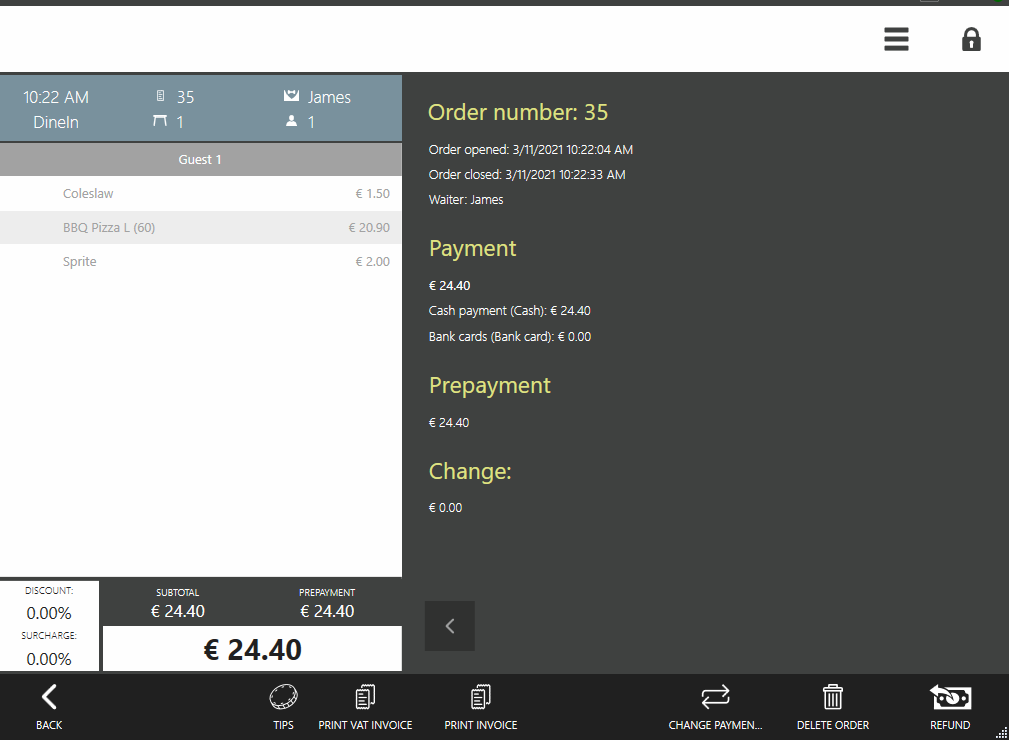
Paying for an order with sufficient funds already deposited
Let there be an order IOrder order that needs to be closed in SyrveFront and sufficient processed payments have already been made to the order
(processed payment items are either prepayments made on the SyrveFront cash register screen or payments added at the initiative of the plugin using the AddExternalPaymentItem method with the isProcessed flag set to true).
For such an order, the method can be called:
operationService.PayOrder(credentials, order);
Paying for an order in cash with settlement to the waiter
Let there be an order IOrder order that needs to be paid in cash for the full amount and closed in SyrveFront.
To do this, the appropriate paymentType must be selected.
Then the method IOperationService.PayOrderAndPayOutOnUser is called.
In the example below, the order is paid in cash for the full amount:
var order = PluginContext.Operations.GetOrders().Last(o => o.Status == OrderStatus.New || o.Status == OrderStatus.Bill);
var credentials = PluginContext.Operations.AuthenticateByPin("777");
var paymentType = operationService.GetPaymentTypesToPayOutOnUser().First(x => x.IsCash);
PluginContext.Operations.PayOrderAndPayOutOnUser(credentials, order, paymentType, order.ResultSum);
Paying with a plugin payment type
Let there be an IOrder order that needs to be paid with a plugin payment type.
var order = PluginContext.Operations.GetOrders().Last(o => o.Status == OrderStatus.New);
var paymentType = PluginContext.Operations.GetPaymentTypes().Single(i => i.Kind== PaymentTypeKind.External && i.Name == "SamplePaymentType");
var credentials = PluginContext.Operations.GetCredentials();
PluginContext.Operations.PayOrderAndPayOutOnUser(credentials, order, paymentType, order.ResultSum);
Comments:
- When paying for an order at the main cash register (during the main cash register shift) using the methods IOperationService.PayOrder or IOperationService.PayOrderAndPayOutOnUser, the order will be closed, all necessary receipts will be printed, a fiscal receipt will be printed, and the order will be marked as closed in SyrveFront (NOTE: add a section explaining fiscal withdrawal for settlement to the waiter).
Refund of Payment
Refunding payments and returning orders at the initiative of the plugin is not yet implemented, so it must be performed from stationary SyrveFront terminals by a system user.
Processing Payments
Adding a payment processed externally to an order
In some cases, it is necessary to add a payment item to an order that has already been processed outside of SyrveFront.
To do this, the AddExternalPaymentItem method is used, with the isProcessed parameter set to true.
In this case, SyrveFront considers that the necessary transactions related to the payment item have been completed externally.
Therefore, it does not take any action on its part for processing and marks this payment item as processed.
Example
var order = PluginContext.Operations.GetOrders().Last(o => o.Status == OrderStatus.New);
var paymentType = PluginContext.Operations.GetPaymentTypes().Last(x => x.Kind == PaymentTypeKind.Cash);
PluginContext.Operations.AddExternalPaymentItem(150, true, null, paymentType, order, PluginContext.Operations.GetCredentials());

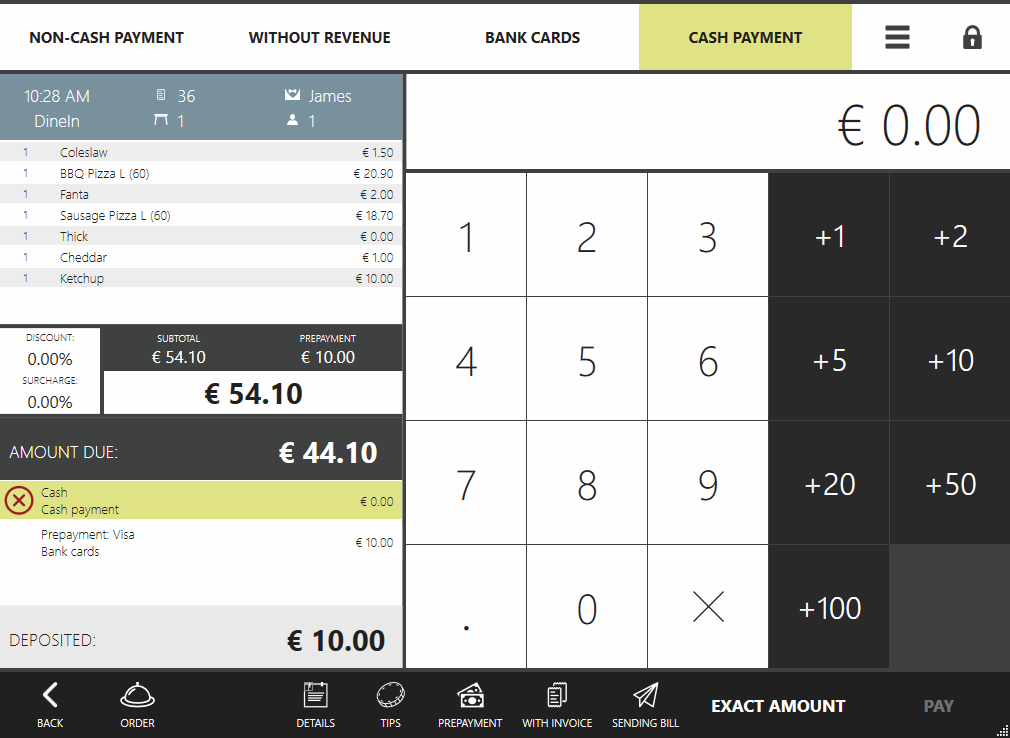
Adding a processed payment to an order and converting it to a prepayment in SyrveFront
Sometimes it is necessary to add a payment item to an order so that it appears in Syrve Office reports before the order is closed.
In this case, the payment should be added to the order using the AddExternalPaymentItem method with the isProcessed parameter set to true, and then the IOperationService.ProcessPrepay method should be called.
Example
var order = PluginContext.Operations.GetOrders().Last(o => o.Status == OrderStatus.New);
var paymentType = PluginContext.Operations.GetPaymentTypes().Last(x => x.Kind == PaymentTypeKind.Card && x.Name.ToUpper() == "DINERS");
var additionalData = new CardPaymentItemAdditionalData { CardNumber = "123456" };
var credentials = PluginContext.Operations.GetCredentials();
var paymentItem = PluginContext.Operations.AddExternalPaymentItem(150, true, additionalData, paymentType, order, credentials);
order = PluginContext.Operations.GetOrderById(order.Id);
PluginContext.Operations.ProcessPrepay(credentials, order, paymentItem);
Adding a preliminary payment to an order and subsequently converting it to a prepayment in SyrveFront
To pay for a delivery order, you should first add a preliminary payment using the IEditSession.AddPreliminaryPaymentItem method, and then call the IOperationService.ProcessPrepay method.
Example
var order = PluginContext.Operations.GetDeliveryOrders().Last(o => o.Status == OrderStatus.New || o.Status == OrderStatus.Bill);
var paymentType = PluginContext.Operations.GetPaymentTypes().Last(i => i.Kind == PaymentTypeKind.Cash);
var credentials = PluginContext.Operations.GetCredentials();
var paymentItem = PluginContext.Operations.AddPreliminaryPaymentItem(order.ResultSum, null, paymentType, order, credentials);
PluginContext.Operations.ProcessPrepay(credentials, PluginContext.Operations.GetDeliveryOrderById(order.Id), paymentItem);
Payment Types That Support Silent Processing
Sometimes clients need the ability to make a prepayment or tip initiated by the plugin (without entering the prepayment or tip popup in SyrveFront) using an unprocessed payment type (for subsequent processing on the SyrveFront side).
An unprocessed payment type means it was created with the isProcessed flag set to false.
Processing any payment initiated by the plugin requires that the payment supports so-called silent payment, where no interaction with the SyrveFront user interface is required for processing (e.g., for data collection), it is assumed that all necessary data has already been collected.
Among the payment types that support silent payment, there are those that support it by default:
- Cash
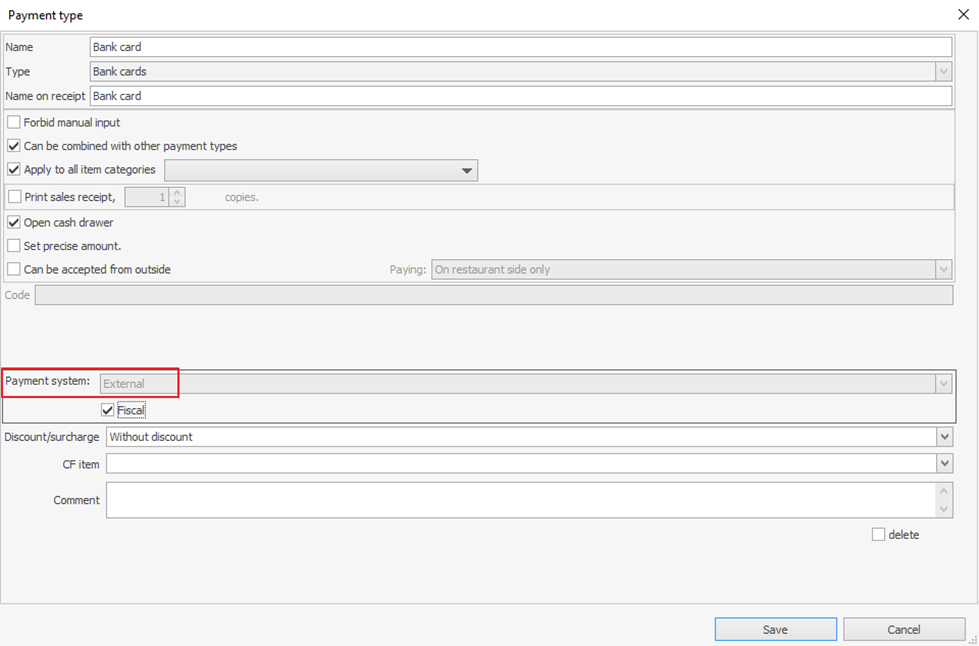
- Bank cards, whose payment system is set as “External”.
The payment system configuration for the payment type in Syrve Office should be as follows:
Additionally, silent payment support can be implemented for external plugin types. For more details, see the section External Payment Types.
Additionally:
- Adding tips to an order is described in the section Tips.
Deleting Payments
-
IEditSession.DeletePaymentItem — delete payment
-
IEditSession.DeleteExternalPaymentItem — delete external payment
-
IEditSession.DeletePreliminaryPaymentItem — delete preliminary payment (makes sense only for delivery orders)
Example
- Deleting an external payment item from an order
var order = PluginContext.Operations.GetOrders().Last(o => o.Status == OrderStatus.New);
var paymentItem = order.Payments.FirstOrDefault(i => i.IsExternal);
if (paymentItem != null)
  PluginContext.Operations.DeleteExternalPaymentItem(paymentItem, order, PluginContext.Operations.GetCredentials());
More examples can be found in the SDK SamplePaymentPlugin project.