External Fiscal Registrars
v6 If you did not find the model of the fiscal registrar (FR) you need in the list of supported models in Syrve, you can write to support for the model you are interested in. This will be a plugin connected to SyrveFront — an external FR. See introduction. For plugins implementing external FRs, special licensing is introduced.
Connecting an External Fiscal Registrar
Connecting an external FR consists of 2 steps.
Step 1: Register a new FR model.
To do this, you need to implement the interface ICashRegisterFactory and register it by calling the API methods:
var cashRegisterFactory = new SampleCashRegisterFactory();
PluginContext.Operations.RegisterCashRegisterFactory(cashRegisterFactory);
This is necessary so that your new FR model appears in SyrveRMS, which can then be added and connected as a cash register equipment (KKT).
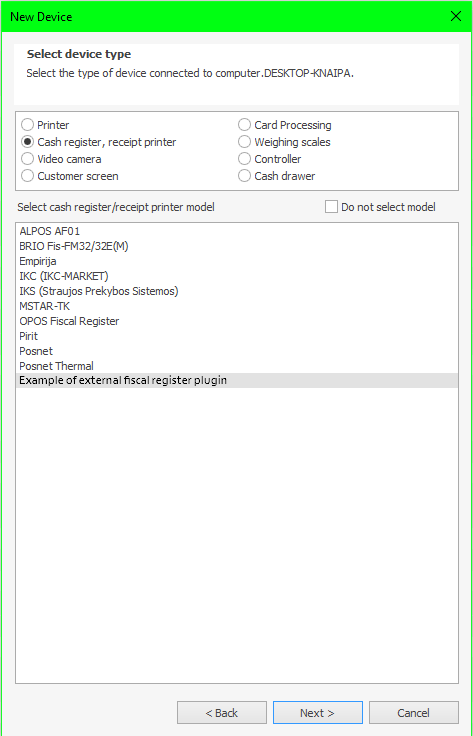
Step 2: Add a new model FR.
To do this, you need to implement the interface ICashRegister and create its instance in the method ICashRegisterFactory.Create():
class SampleCashRegisterFactory : MarshalByRefObject, ICashRegisterFactory
{
    ...
    public ICashRegister Create(Guid deviceId, [NotNull] CashRegisterSettings settings)
    {
        if (settings == null)
            throw new ArgumentNullException(nameof(settings));

        return new SampleCashRegister(deviceId, settings);
    }
}
When you click “Finish” in the FR addition window (Syrve Office => “Equipment Settings”), the method ICashRegisterFactory.Create() will be called, which will add the new FR to the equipment list.
After that, SyrveRMS will be able to communicate with the external FR, send it commands, and receive its responses.
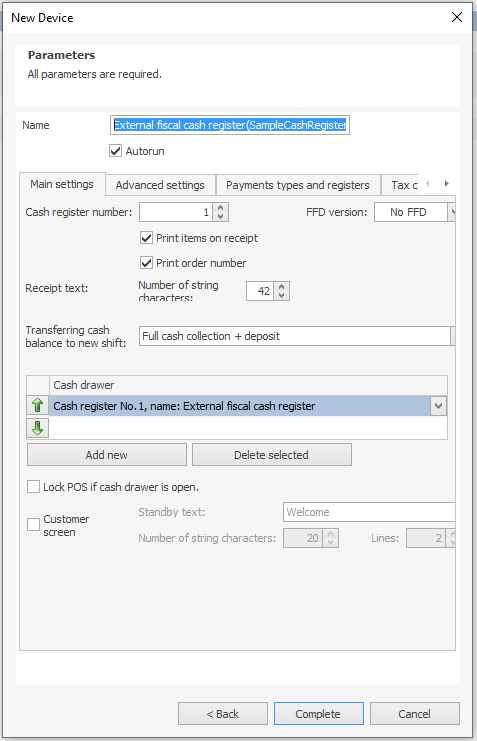
Fiscal Registrar Settings CashRegisterSettings
Each equipment has its own set of settings IDeviceFactory.DefaultDeviceSettings:
interface IDeviceFactory
{
    ...
    [NotNull]
    DeviceSettings DefaultDeviceSettings { get; }
}
Custom Settings:
Depending on the FR model, the set of settings may vary.
For this, a container for custom settings DeviceSettings.Settings is provided:
class DeviceSettings
{
    ...
    List<DeviceSetting> Settings { get; set; }
}
Setting Options:
- bool — checkbox —
DeviceBooleanSetting - string — text field —
DeviceStringSetting - number — numeric field
DeviceNumberSetting: — integerDeviceNumberSettingKind.Integer, — decimalDeviceNumberSettingKind.Decimal, — quantitative, with control arrows —DeviceNumberSettingKind.Amount - enum — enumeration with a defined set of values
DeviceCustomEnumSetting: — dropdown list —DeviceCustomEnumSetting.IsList = true— radio group —DeviceCustomEnumSetting.IsList = falseThe enumeration value is described by the typeDeviceCustomEnumSettingValue.
All settings from the collection DeviceSettings.Settings when connecting the FR appear on the “Additional Settings” tab:
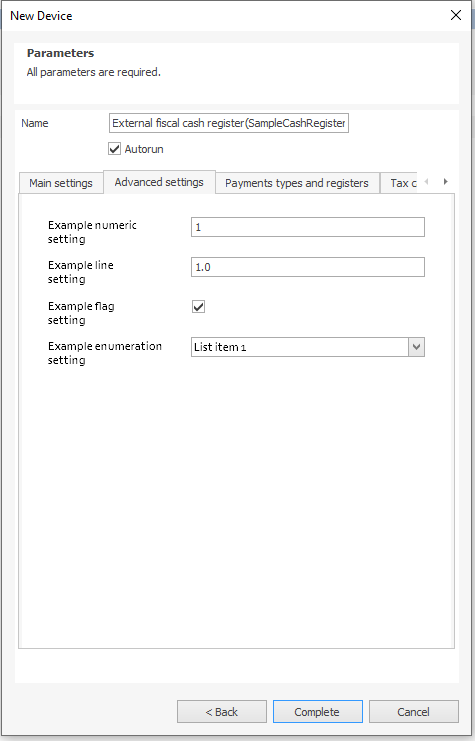
Mandatory Settings:
There are settings that are present in any FR model. These include:
CashRegisterSettings.Font0Width— width of the receipt tape (tab “Basic Settings”).CashRegisterSettings.OfdProtocolVersion— version of the fiscal data format protocol, further referred to as FFD (tab “Basic Settings”). Relevant only for the UK.CashRegisterSettings.FiscalRegisterTaxItems— list of FR registers corresponding to tax categories (tab “Tax Categories”).
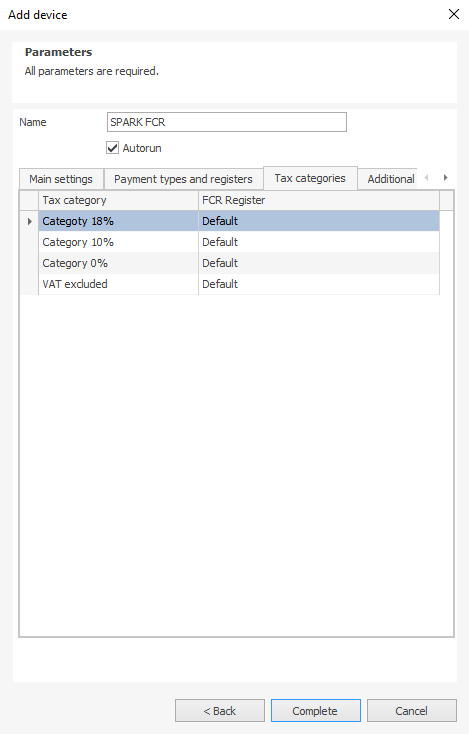
CashRegisterSettings.FiscalRegisterPaymentItems— list of FR registers corresponding to payment types (tab “Payment Types and Registers”).
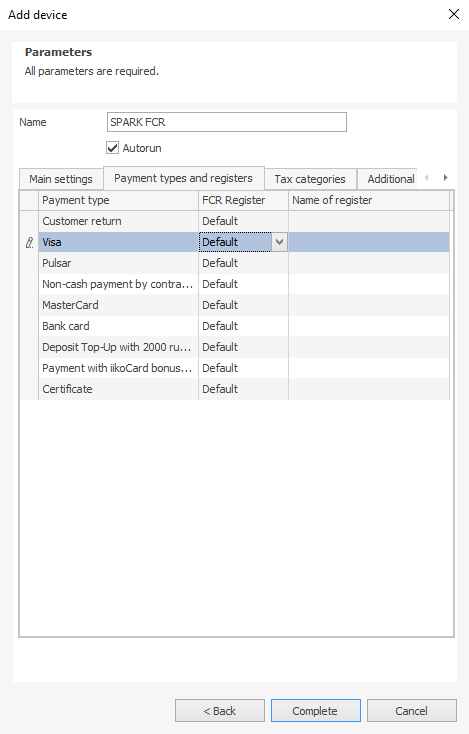
class CashRegisterSettings : DeviceSettings
{
    [CanBeNull]
    DeviceNumberSetting Font0Width;
    [CanBeNull]
    DeviceCustomEnumSetting OfdProtocolVersion;
    List<FiscalRegisterTaxItem> FiscalRegisterTaxItems;
    List<FiscalRegisterPaymentType> FiscalRegisterPaymentTypes;
}
Interaction of SyrveFront with External Fiscal Register
The interaction of SyrveFront with the external FR occurs through the interface ICashRegister.
It is responsible for the behavior of the external FR.
For example, when a payment is made for an order in SyrveFront, control will go to the command ICashRegister.DoCheque() with the necessary data ChequeTask to perform the operation on the FR. SyrveFront will wait for the command to be executed and analyze the response from the FR CashRegisterResult.
FR Operations
1. Setup() — setting up the FR’s configurations.
This is the first command executed by the plugin.
It is called when adding a new FR or when editing the FR’s settings.
The main task of the plugin is to save and apply the new settings CashRegisterSettings that come as an argument.
Most often, this command stops the FR driver, applies the new settings, and starts the FR if it was running:
public void Setup([NotNull] DeviceSettings newSettings)
{
    if (newSettings == null)
        throw new ArgumentNullException(nameof(newSettings));

    Stop();
    Settings = (CashRegisterSettings)newSettings;
    if (newSettings.Autorun && wasConnected)
        Start();
}
2. Start() — starting the FR.
The command is invoked by pressing “Start” in Syrve Office.
The FR can also be started automatically if the “Start automatically” flag is set in the FR settings when adding the device.

Usually, this command initializes the driver, opens the port, connects to the device, and tests the connection:
public void Start()
{
    SetState(State.Starting);
    try
    {
        driver = new Driver(); // device driver initialization
        driver.Start()
    }
    catch (Exception e)
    {
        PluginContext.Log.Error($"Failed to load driver with error: {e.Message}");
        SetState(State.Stopped);
        throw new DeviceException(e.Message);
    }
    SetState(State.Running);
}
3. Stop() — stopping the FR.
The command is invoked by pressing “Stop” in Syrve Office.
The command is intended to stop the device, free resources, and close ports, for example:
public void  Stop()
{
    SetState(State.Stopping);
    try
    {
        driver?.close();
    }
    catch (Exception e)
    {
        throw new DeviceException(e.Message);
    }
    driver = null;
    SetState(State.Stopped);
}
4. RemoveDevice() — removing the device.
The command is invoked when selecting “Remove” from the context menu of the external FR item in Syrve Office.
The FR object in RMS will be marked as removed if the command execution does not throw an exception.
5. GetDeviceInfo() — requesting the state of the FR.
The command is invoked each time the “Administration” => “Hardware Settings” tab is opened or by pressing the “Refresh” button on the same tab.

Based on the received response DeviceInfo, RMS understands the communication protocol with the FR: whether it can be operated, and which commands can be sent to the FR.
The state of the FR is described by the type DeviceInfo, which contains:
State— state of the FR. This can be “Running” (started), “Stopped” (stopped), and others.Comment— text description of the FR state.Settings— FR settingsCashRegisterSettings.
Example implementation of a request for the state of a connected and running device:
public DeviceInfo GetDeviceInfo()
{
    return new DeviceInfo
    {
        State = State.Running,
        Comment = "Running",
        Settings = currentCashRegisterSettings
    };
}
6. DoOpenSession() — open cash session (CS).
Relevant for those FRs whose drivers have the command “Open session”.
For example, FRs of the FZ-54 type, as the cashier’s name needs to be specified.
If the FR does not have a separate command for opening a session, it should return a successful response CashRegisterResult.Success = true without performing the operation on the FR.
7. DoXReport() — print X-report or its equivalent (intermediate daily report without closing the session).
The cash session in SyrveFront is considered open if the command DoOpenSession() executes without exception, and DoXReport() returns a successful result: CashRegisterResult.Success = true.
8. DoBillCheque() — pre-check of the order or cancellation of the pre-check.
The command is executed on those FRs that support printing pre-checks CashRegisterDriverParameters.IsBillTaskSupported = true
(see check type “Bill”).
Order information comes in the argument BillTask:
Id— unique number of the operation being performed.CashierName— name of the cashier.CashierId— GUID of the cashier, their identifier:IUser cashier = PluginContext.Operations.GetUserById(CashierId)CashierTaxpayerId— taxpayer ID of the cashier.IsRefund— flag indicating the cancellation of the operation. If the command “Return order” is selected on the front, the flag will be “true” and then the FR should print a return check.IsCancellation— cancellation of the check, relevant only for the United Kingdom and Latvia. Cancellation is the annulment of an erroneous sales check. If the cashier makes a return of goods, the FR prints a return check. If the cashier mistakenly issued a check, a cancellation check should be printed.Sales— order itemsChequeSale. Most often, this is a set of information about the dishes in the order, sometimes items are grouped by VAT. This depends, in particular, on whether the FR supports FFD above 1.0.СancellingSaleNumber— order number (relevant only for the United Kingdom). Filled in when canceling the operation. There can be two operations: pre-check of the order and payment of the order. Since the typeChequeTask(see order closing operation) includes the typeBillTask, all current fields also relate to order closing.DiscountSum— total discount amount for all order items. Only non-categorical discounts are included here. These are discounts that apply to the entire order, not to any specific dish or their category.IncreaseSum— total amount of surcharges for all order items. Only surcharges that apply to the entire order are included here as well.DiscountPercent— discount percentage on the order amount. Here, the discount or surcharge percentage is provided more for information; it is not advisable to make any calculations based on them, for example, to recalculate discounts.DiscountPercent = (Sum of dishes / DiscountSum) * 100IncreasePercent— surcharge percentage on the order amount.IncreasePercent = (Sum of dishes / IncreaseSum) * 100ResultSum— final order amount considering all discounts and surcharges. This amount is obtained by summing all the costs of the order items, taking into account VAT, discounts, surcharges, and rounding. It can be represented in the form of a formula:ResultSum = Sum of dishes - all discounts - Rounding(RoundSum) + all surchargesTableNumberLocalized— formatted string with the table number. If the FR settings have the flag “Print order number”, then also with the order number (example: “Table: 10” or “Table: 10 Order: 5”).OrderNumber— order number.TableNumber— table number.PrintArticle— contains the value of the trade enterprise group setting “Print article on the check” (“Administration” => “Trade Enterprise Settings” => “Group” => “Payment Type Settings”).TextBeforeCheque— text added at the beginning of the check. The functionality of adding such text becomes available after supporting the interfaceIChequeTaskProcessorand registering it using the commandRegisterChequeTaskProcessor().TextAfterCheque— text added at the end of the check.
Order items are described by the type ChequeSale:
Name— name of the item (product, dish, etc.).Code— item article number. In some cases, the article number may be absent (in this case, zero is transmitted). For example, a receipt is printed with items grouped by VAT or a prepayment receipt.Price— price of the item, excluding discounts and surcharges.Amount— quantity of the item.GuestName— name of the guest corresponding to the item on the receipt.Vat— VAT amount for the item.Section— section of the FR to which the dish belongs, according to the dish preparation map (“Administration” => “Trade Enterprise Settings” => “Group” => “General Settings” => “General Dish Preparation Map”).DiscountSum— total amount of categorical discounts applicable to this item.IncreaseSum— total amount of categorical surcharges applicable to this item.Discount— discount percentage on the item.Discount = (Item price / DiscountSum) * 100Increase— surcharge percentage on the item.Increase = (Item price / IncreaseSum) * 100Sum— total cost of the item, taking into account all discounts and surcharges, both for the individual item and for the entire receipt (categorical and non-categorical discounts and surcharges).Sum = item price - all discounts applicable to the item + all surchargesIsTaxable— whether the item is subject to tax (checks for belonging to a tax category).TaxId— identifier of the tax rate in the FR corresponding to the tax category to which the order item belongs (*“Administration” => “Equipment Settings” => “FR Settings” => “Tax Categories”). If the mapping of tax categories between Syrve and FR is set up, the identifier of the tax rate specified by the user is transmitted. If the mapping is not set up (the value is “Default”), an empty string is transmitted.TransferType— indicator of the method of calculation (advance (“Advance”), payment (“FullPayment”) and others).ItemCategory— code of the calculation item indicator corresponding to the item, according to the directory “Goods and Warehouses” => “Calculation Indicators”.Contractor— consignor/supplier. The consignor is specified in the group settings in the table “General Dish Preparation Map” (“Administration” => “Trade Enterprise Settings” => “Group” => “General Settings” => “General Dish Preparation Map”).GtinCode— 14-digit “Global Trade Item Number” for the receipt item.ProductId— identifier of the dish, product, service, or other. To get the dish:PluginContext.Operations.GetProductById(chequeTask.Sales[0].ProductId)After clicking “Precheck” on the order screen, the front sends a command to the FR and waits for a response
CashRegisterResult, which consists of the following:Success— true — the operation was successful, false — the operation failed or encountered an error.Message— text message of the command execution by the FR. SyrveFront displays this text on the screen if the operation was unsuccessful.CashSum— cash amount in the register at the time of the request.TotalIncomeSum— total revenue (cash + non-cash) in the register for the current cash shift.TotalIncomeSum = sales amount - returns amountAfter closing the cash shift or opening the cash shift,
TotalIncomeSumshould equal zero.Session— number of the FR shift.SerialNumber— serial number of the FR.DocumentNumber— document number (for UK law: fiscal document number) (documents include opening a shift, cash in, cash out, etc.).SaleNumber— receipt number (receipt: sales receipt, return receipt).BillNumber— order/bill number (relevant for the UK).RtcDateTime— date and time in the FR.
This is how the response looks for most FR commands, whether it is payment, prepayment, precheck, return, printing a Z-report, printing an X-report, cash in, or cash out.
Depending on the content of the response, SyrveFront determines whether the command was executed on the FR and with what result.
In general, for any operation with such a response, if the result returned is unsuccessful Success=false, SyrveFront will display an error on the screen with the message text Message and SyrveFront will consider that the command was not executed on the FR.
This does not apply to the check for duplication, which is performed for each cash operation (payment, return, cash in, cash out, prepayment).
The purpose of this mechanism is to prevent the execution of a cash operation again in case the FR returned an error.
SyrveFront will attempt to identify discrepancies in cash amounts in the FR with its own calculations before each such operation.
While SyrveFront processes negative responses uniformly, successful results for each operation are analyzed differently.
Thus, in the case of a precheck, the bill/order number will be saved in the SyrveFront database, provided that BillNumber != null.
9. DoCheque() — closing an order, prepayment, return.
The command is called when closing an order (by clicking “Pay” on the cash register screen) in SyrveFront. All necessary information about the order, its payments, and the cashier comes in the argument ChequeTask, which includes the description of BillTask and supplements it with the following properties:
CashPayment— cash payment amount.CardPayments— list of non-cash payments. Non-cash paymentChequeCardPaymentcontains: — payment amountChequeCardPayment.Name. — FR register corresponding to the payment typeChequeCardPayment.PaymentRegisterId. — default indicator — if the FR register has not been assignedChequeCardPayment.IsDefaultNonCash.CreditSum— amount on the receipt with post-payment (credit).ConsiderationSum— amount on the receipt with counter-provision.PrepaymentSum— amount on the receipt with prepayment (offset of advance and/or previous payments).
All the above types of payments in total cover the cost of the order.
RoundSum— remainder from rounding the cost of the order in favor of the client. For example, if the order cost 100 dollars and 20 cents,RoundSumwill be equal to 20 cents. Rounding is not included in the total discounts on the order or on the item, it is only displayed in the current field.OrderId— order identifier. To get the order:PluginContext.Operations.GetOrderById(chequeTask.OrderId.Value)PrepaymentId— guid of the payment, which allows to uniquely identify the returned receipt. Used for all prepayment operations and needed to link the prepayment with the return of the prepayment; in any other operation, it will be null. The plugin can maintain its local database of operations, recording prepayment operations with the necessary data. Thus, when performing a prepayment return, it can identify the specific prepayment operation and use, for example, unique identifiers of the specific operation for executing the return.BillNumber— fiscal number of the receipt.OperationTime— time of order closure.IsOfdElectronicChequeOnly— only print the receipt, without sending SMS and other actions.OfdPhoneNumber— OFD phone number for receiving the receipt.OfdEmail— OFD email for receiving the receipt.TaxationSystem— taxation system of the receipt.SettlementAddress— settlement address. Filled according to the FR settings “Administration” => “Equipment Settings” => “FR Settings” => “Additional Information”.SettlementPlace— place of settlement. Filled according to the FR settings “Administration” => “Equipment Settings” => “FR Settings” => “Additional Information”.
When making payments, prepayments, refunds, deposits, and withdrawals, SyrveFront can compare its cash totals for the cash shift with the totals from the fiscal registrar (FR), depending on the SyrveFront configuration; by default, reconciliation occurs. This is done to avoid possible duplication of receipt printing, which may still occur even if an unsuccessful result Success=false is returned.
To achieve this, the fields CashSum and TotalIncomeSum are analyzed.
Also, after payment, SyrveFront saves the document number of the FR DocumentNumber in the database, which can later be seen in the closed order along with the sale number SaleNumber.
Example implementation of DoCheque():
public CashRegisterResult DoCheque([NotNull] ChequeTask chequeTask)
{
	if (chequeTask == null)
		throw new ArgumentNullException(nameof(chequeTask));

	if (chequeTask.IsCancellation)
		throw new DeviceException("Cancellation receipt is not supported");

	driver.SetCashier(chequeTask.CashierName, chequeTask.CashierTaxpayerId);

	//Cancel opening documents if any
	driver.ResetDevice();

	//Open receipt
	if (chequeTask.isRefund)
		driver.OpenRefundCheck();
	else
		driver.OpenSaleCheck();

	//Print table and order number
	driver.PrintText(string.IsNullOrWhiteSpace(chequeTask.TableNumberLocalized)
		? string.Format("Table: {0}, Order No {1}", chequeTask.TableNumber, chequeTask.OrderNumber)
		: chequeTask.TableNumberLocalized);

	//Print additional lines at the beginning of the receipt
	if (!string.IsNullOrWhiteSpace(chequeTask.TextBeforeCheque))
		driver.PrintText(chequeTask.TextBeforeCheque);

	foreach (var sale in chequeTask.Sales)
	{
		var taxId = GetTaxId(sale); //get tax rate
		driver.RegisterItem(sale.Name, sale.Price, sale.Amount, taxId);

		//Register discount on item
		if (sale.DiscountSum > 0.0m)
			driver.RegisterDiscount(sale.DiscountSum);

		//Register surcharge on item
		if (sale.IncreaseSum > 0.0m)
			driver.RegisterIncrease(sale.IncreaseSum);
	}

	//Print subtotal of the receipt
	driver.PrintSubtotal();

	//Register discount on subtotal of the receipt
	if (chequeTask.DiscountSum > 0.0m)
		driver.RegisterSubtotalDiscount(chequeTask.DiscountSum);

	//Register surcharge on subtotal of the receipt
	if (chequeTask.IncreaseSum > 0.0m)
		driver.RegisterSubtotalIncrease(chequeTask.IncreaseSum);

	foreach (var cardPayment in chequeTask.CardPayments)
	{
		var paymentRegisterId = GetPaymentRegisterId(cardPayment); //get payment type number
		driver.AddPayment(GetCardPaymentId(cardPayment), cardPayment.Sum);
	}

	cardPayments = chequeTask.CardPayments.Sum(cardPayment => cardPayment.Sum);

	if (chequeTask.CashPayment > 0.0m || cardPayments == 0.0m)
	{
		//cashPaymentId - payment type number for cash
		driver.AddPayment(cashPaymentId, chequeTask.CashPayment);
	}

	//Print additional lines at the end of the receipt
	if (!string.IsNullOrWhiteSpace(chequeTask.TextAfterCheque))
		driver.PrintText(chequeTask.TextAfterCheque);

	//Close receipt
	driver.CloseCheck();
	return GetCashRegisterData();
}
10. GetCashRegisterData() — command to request data from the FR.
It is called every time during fiscal operations to obtain data on cash amounts, to get the serial number of the FR (if the serial number changed within one cash register, SyrveFront will ask to close the cash register and open a new one), or the date and time on the FR when opening the shift for reconciliation.
Example implementation of GetCashRegisterData():
public CashRegisterResult GetCashRegisterData()
{
	CheckState(State.Running);
	var totalIncomeSum = driver.GetSalesSum() - driver.GetRefundsSum();
	var cashSum = driver.GetCashSum();
	var serialNumber = driver.GetSerialNumber();
	var sessionNumber = driver.GetSessionNumber();
	var dateTime = driver.GetDateTime();
	var receiptNumber = driver.GetLastReceiptNumber();
	var documentNumber = driver.GetLastDocumentNumber();

	return new CashRegisterResult(cashSum, totalIncomeSum, sessionNumber, serialNumber, receiptNumber,
								  documentNumber, null, dateTime.ToString(CultureInfo.InvariantCulture));
}
11. GetCashRegisterStatus() — command to request the status of the FR.
This status is displayed in the SyrveFront tray.
For example, if the FR returns the service mode RestaurantMode and it does not match the service mode of SyrveFront, a message “Incorrect FR mode” will be displayed.
Also, the SessionStatus checks for the expiration of the shift. Additionally, the FR may display a message in the tray if:
status.Success = false && status.Message != null
SyrveFront polls the status of the FR every time after performing any fiscal operation.
12. OpenDrawer() — open the cash drawer (CD).
Depending on the payment type setting “Open cash drawer”, a command will be sent to the FR to open the cash drawer.
13. IsDrawerOpened() — whether the cash drawer is open.
If the FR does not support the command to get the status of the cash drawer, it should return true.
14. PrintText() — print a non-fiscal document.
For example, printing reports, printing barcodes for items.
The text of the document will be sent in the command PrintText() for printing on paper.
15. DoPayIn() — deposit cash into the register.
Information about the cashier can be obtained as follows:
IUser cashier = PluginContext.Operations.GetUserById(cashierId);
16. DoPayOut() — withdraw cash from the register.
17. DoCorrection() — print a correction receipt (SyrveFront => “Add” => “Correction Receipt”).
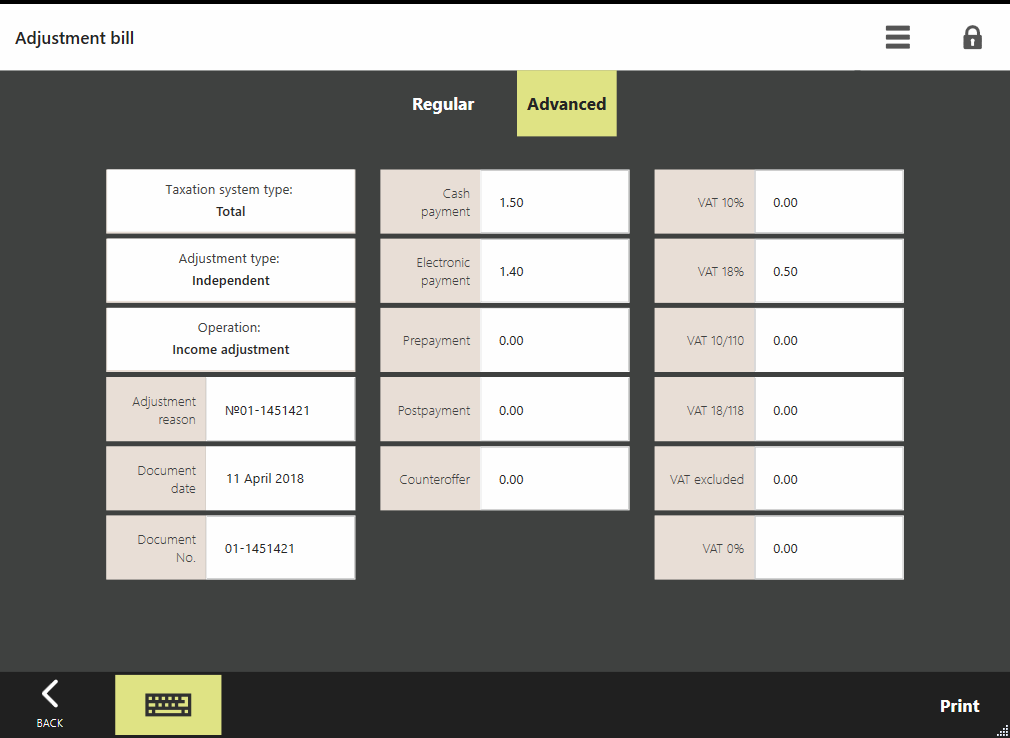 Based on the passed object
 CorrectionTask, the FR understands which correction receipt needs to be processed:
DocumentType— calculation indicator: —CorrectionDocumentType.Sale— correction of income, —CorrectionDocumentType.Buy— correction of expenses.CorrectionReason— type of correction: —CorrectionReasonEnum.OwnInitiative— self-initiated, —CorrectionReasonEnum.Determination— by order.CashSum— cash amount on the receipt.NonCashSum— electronic funds.PrepaymentSum— prepayment.CreditSum— credit payment.ConsiderationSum— payment by counter offer.DocumentDateTime— date of the document basis for correction in the format YYYY-MM-DD.DocumentNumber- number of the document basis for correction.DocumentName— name of the document basis for correction.TaxationSystem— applicable taxation system.VatSum— corrected VAT amounts (VAT amount on the receipt at rates of 18%, 10%, 18/118, 10/110, 0%, without VAT).CashRegisterVatData:TaxAmount— calculated VAT amount andTaxableSum— calculation amount (for VAT 0 and without VAT).
18. DoZReport() — close the cash shift on the FR.
The cash shift on SyrveFront is considered closed if the DoZReport() command returns a successful result: CashRegisterResult.Success = true.
19. GetQueryInfo() — request for extended FR commands.
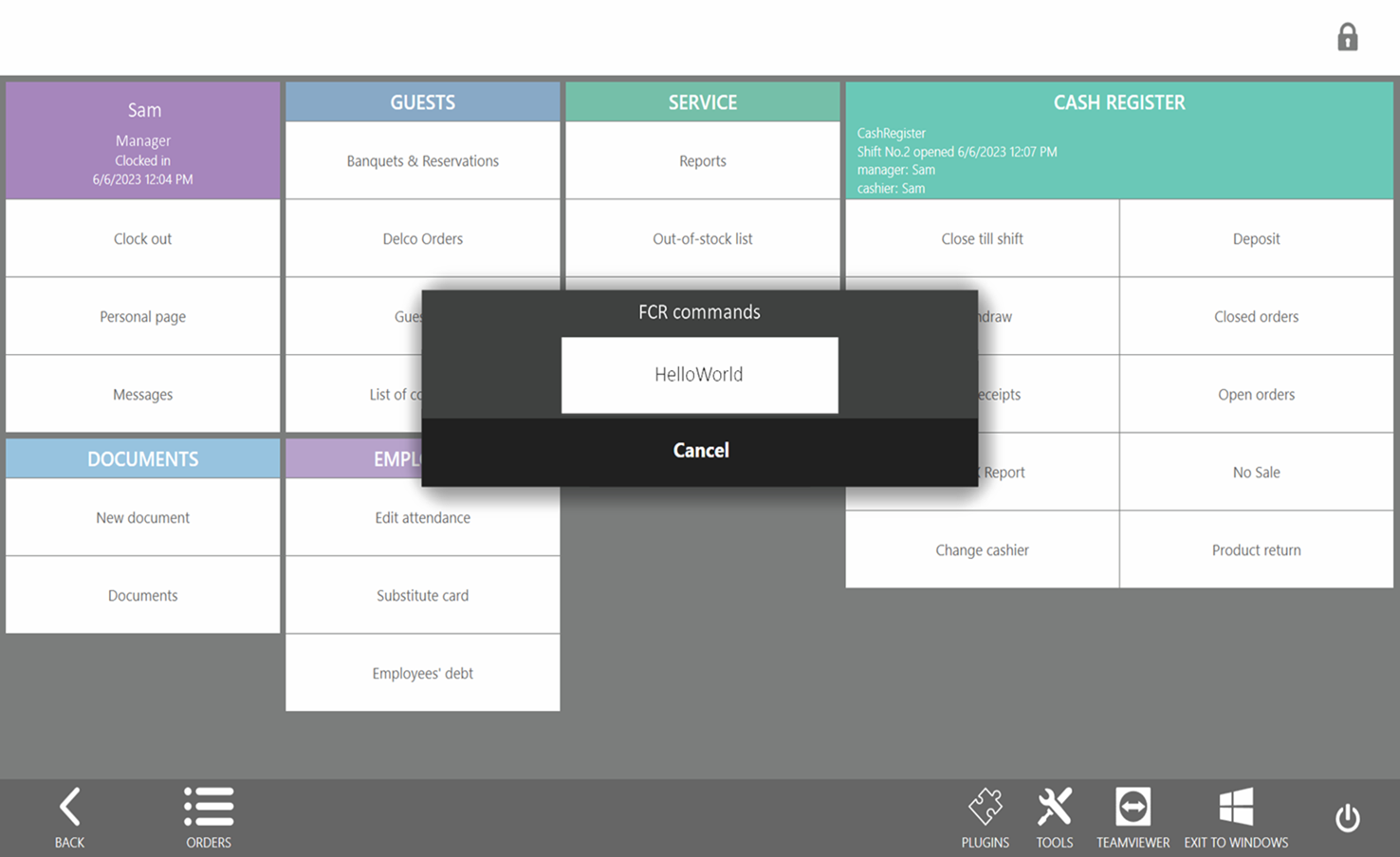
Using the commands GetQueryInfo() and DirectIo(), the FR can add its own commands at its discretion, which can be called from SyrveFront “Add” => “Commands to the fiscal registrar”.
The method GetQueryInfo() returns a description of arbitrary FR commands, while DirectIo() executes them.
Example — greeting the user:
public QueryInfoResult GetQueryInfo()
{
    var supportedCommands = new List<SupportedCommand>
    {
        // user greeting command with the code name "HelloWorld"
        new SupportedCommand("HelloWorld", "Greeting")
        {
            // input parameters
            Parameters = new List<RequiredParameter>
            {
                // field for entering the user's name
                new RequiredParameter("UserName", "User Name", "Enter user name", "string")
            }
        }
    };

    var result = new QueryInfoResult
    {
        SupportedCommands = supportedCommands
    };

    return result;
}
public DirectIoResult DirectIo(CommandExecute command)
{
    if (command == null)
        throw new ArgumentNullException(nameof(command));

    var result = new DirectIoResult { Document = new Document { Lines = new List<string>() } };

    // find the user greeting command by the code name "HelloWorld"
    if (command.Name == "HelloWorld")
    {
        // read data from the input parameter for the user's name
        const string paramName = "UserName";
        var userName = command.Parameters.FirstOrDefault(item => item.Name == paramName)?.Value;

        // write the greeting message
        result.Message = userName != null ? $"Hello, {userName}!" : "Hello everyone!";
    }

    return result;
}
Choosing the FR command:
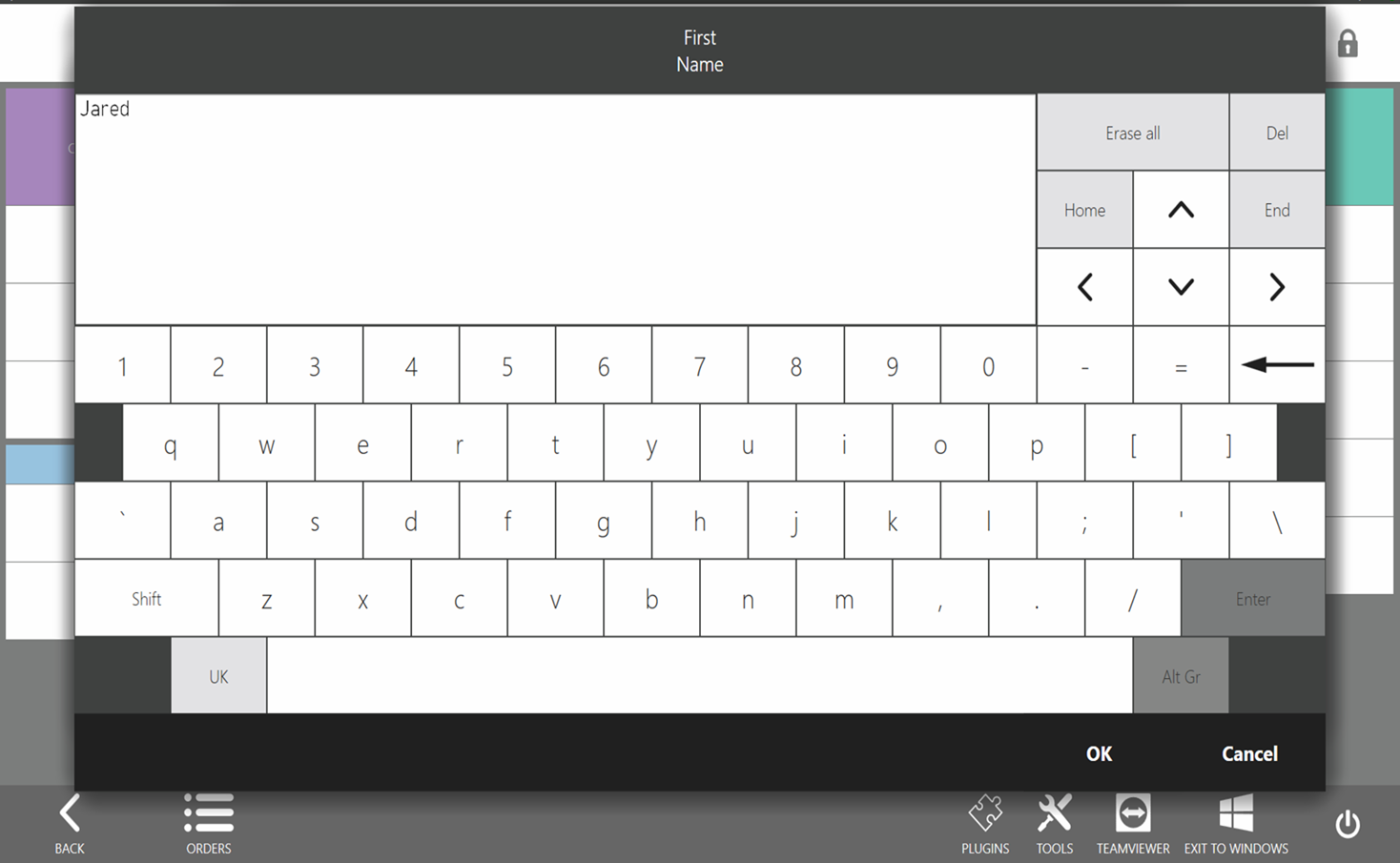
User name input:
User greeting:
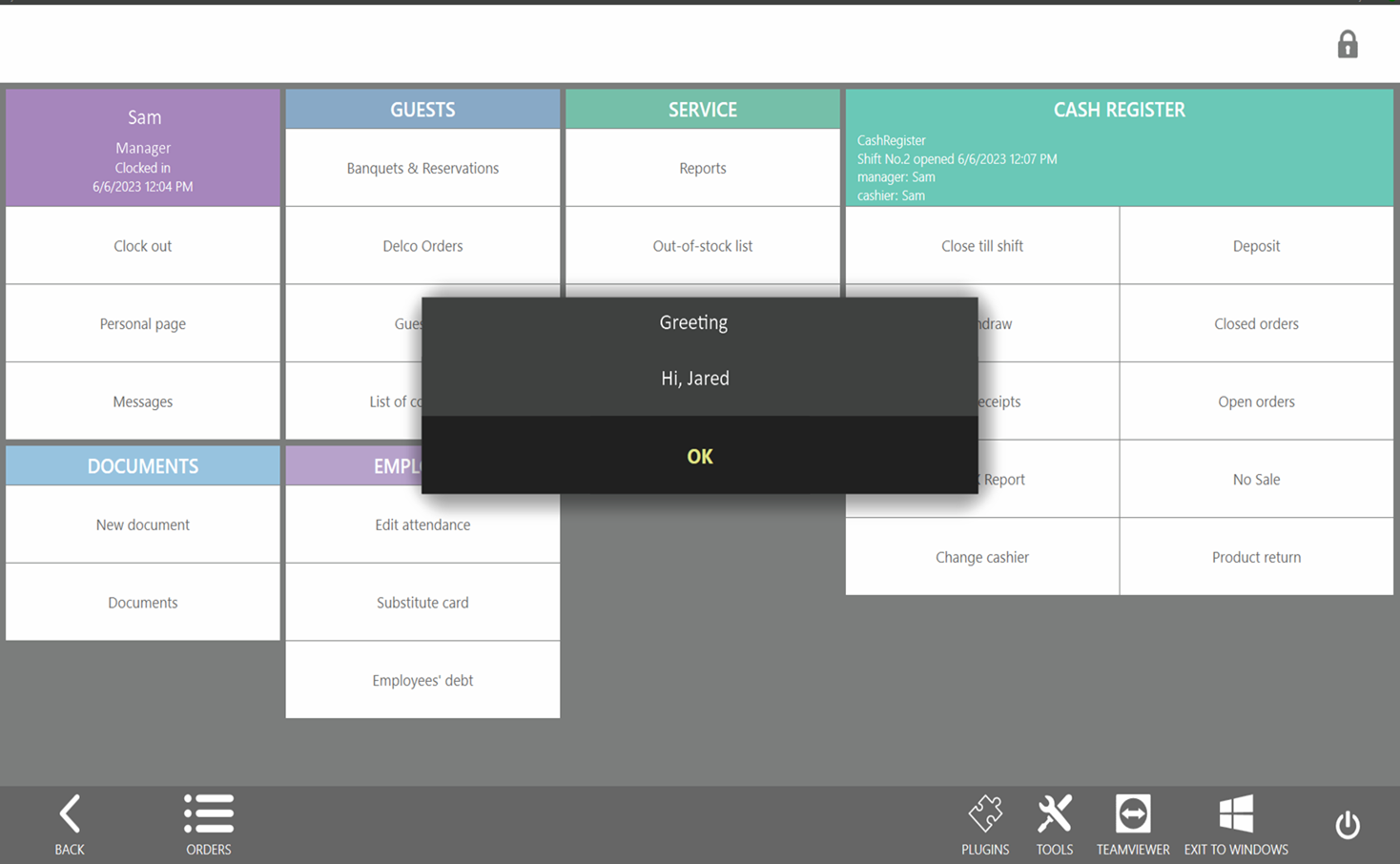
Thus, the plugin can request some data from the user, display messages, and show documents on the UI.
QueryInfoResult:
SupportedCommands— list of supported commands of the cash register beyond the protocol.SupportedCommandcontains: —Name— code name of the command. —ResourceName— displayed name of the command. —Parameters— fields for input information, whereRequiredParameter.Typecan be: “bool”, “string”, “int”, “datetime”, “double”. From this, the type of input field is determined: text, integer input, decimal input, flag, date input.
20. DirectIo() — execution of an arbitrary command of the cash register.
If the command returns a filled DirectIoResult.Document, this document will be displayed on the SyrveFront screen.
21. GetCashRegisterDriverParameters() — cash register driver settings.
Example:
public CashRegisterDriverParameters GetCashRegisterDriverParameters()
{
    return new CashRegisterDriverParameters
    {
        CanPrintText = true, \\ Does the cash register support text printing
        SupportsPayInAfterSessionClose = true, \\ Does the cash register support pay-ins after the cash session is closed
        CanPrintBarcode = true, \\ Does the cash register support printing simple barcodes
        CanPrintQRCode = true, \\ Does the cash register support printing QR codes
        CanUseFontSizes = true, \\ Does the cash register support using fonts for text printing
        Font0Width = 44, \\ Width of the line in font F0
        Font1Width = 42,\\ Width of the line in font F1
        Font2Width = 22,\\ Width of the line in font F2
        IsCancellationSupported = true, \\ Does the cash register support the cancellation operation
        ZeroCashOnClose = false, \\ Does the cash register zero the cash amount in the drawer when closing the session
        IsBillTaskSupported = false, \\ Does the cash register support printing pre-checks via the "Bill" command
    };
}
Typically, these settings are read from the device driver after it starts, as they are not known before startup. From these settings, SyrveFront understands whether the cash register can print text, whether it can accept money in a closed cash session, whether it supports printing QR codes, etc.
FAQ
1. Why does the external cash register not appear in the list of models?
Option 1: Most likely, the registration of the external cash register was unsuccessful. This can be checked in the api.log logs in the front data folder. The presence of the following entries indicates successful registration of the external cash register:
[2019-04-05 14:58:52,546] DEBUG [48] — Plugin “CashRegisterPluginFolderName” connected.
[2019-04-05 14:58:52,731] DEBUG [48] — Plugin “CashRegisterPluginFolderName” is calling RegisterCashRegisterFactory operation
[2019-04-05 14:58:52,791]  INFO [48] — Device factory: "CodeName" added.
CashRegisterPluginFolderName — name of the folder with the plugin SyrveFront/Plugins/CashRegisterPluginFolderName
CodeName — DeviceSettings.CodeName
Otherwise, an exception will be logged.
Option 2: Refresh the equipment settings tab in Syrve Office: “Administration” => “Equipment Settings” => button “Refresh”. If the tab was already open before starting SyrveFront, the list of available equipment models was not updated automatically, and it needs to be refreshed manually or the tab needs to be reopened.
2. How to get the cashier’s name by the cashier’s identifier Guid cashierId?
IUser user = PluginContext.Operations.GetUserById(cashierId);
var name = user.Name;
3. How to configure the types of pay-ins and pay-outs in Syrve Office so that the cash register methods DoPayIn() and DoPayOut() are called?
Most likely, non-fiscal pay-ins and pay-outs are configured.
These are simply accounting transfers that do not trigger cash register commands for printing.
Fiscal pay-ins and pay-outs should have an empty Chief account.
See the documentation from Syrve about “Types of Pay-Ins and Pay-Outs p.4”.