Closed Order Screen
v6 You can add your own commands to the closed order screen of the current cash shift and to the product return screen by receipt, which can perform operations using the closed order object.
How does it look in SyrveFront?
1. On the closed order screen of the current cash shift
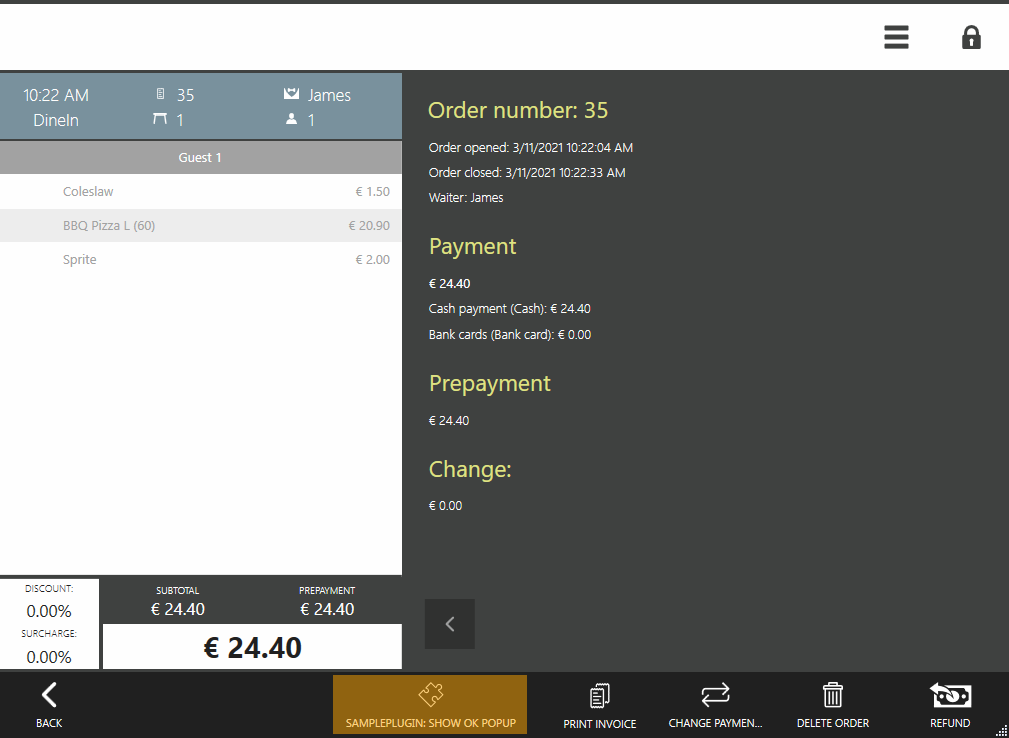
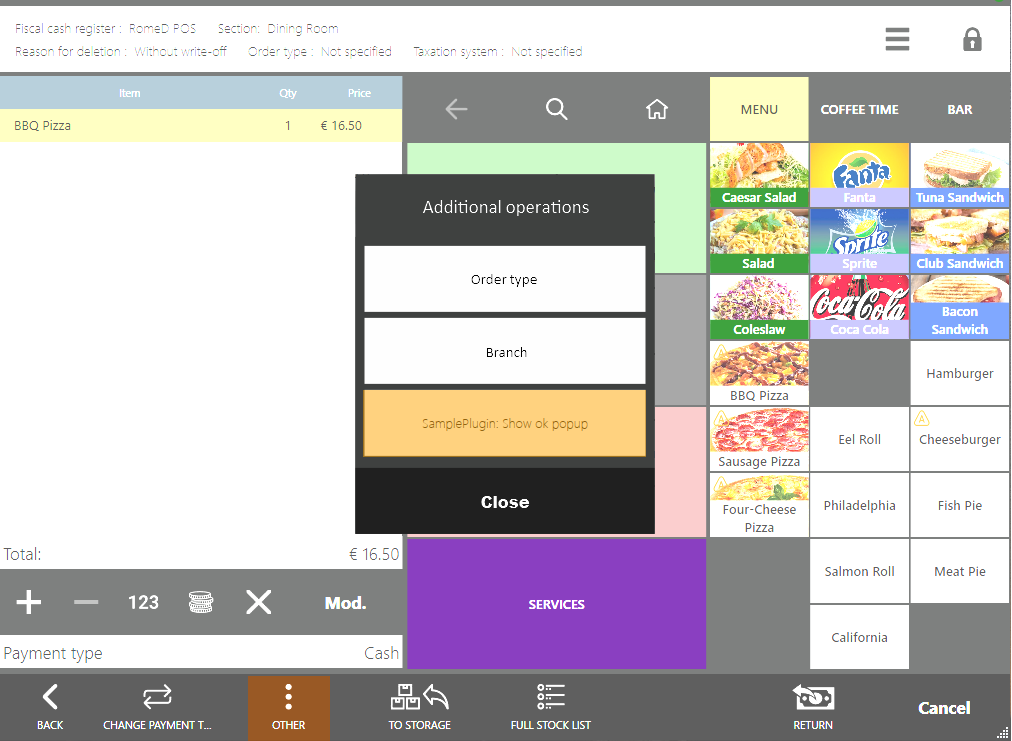
For example, here is how the button “SamplePlugin: Show OK popup” looks, added by the SamplePlugin from the SDK.
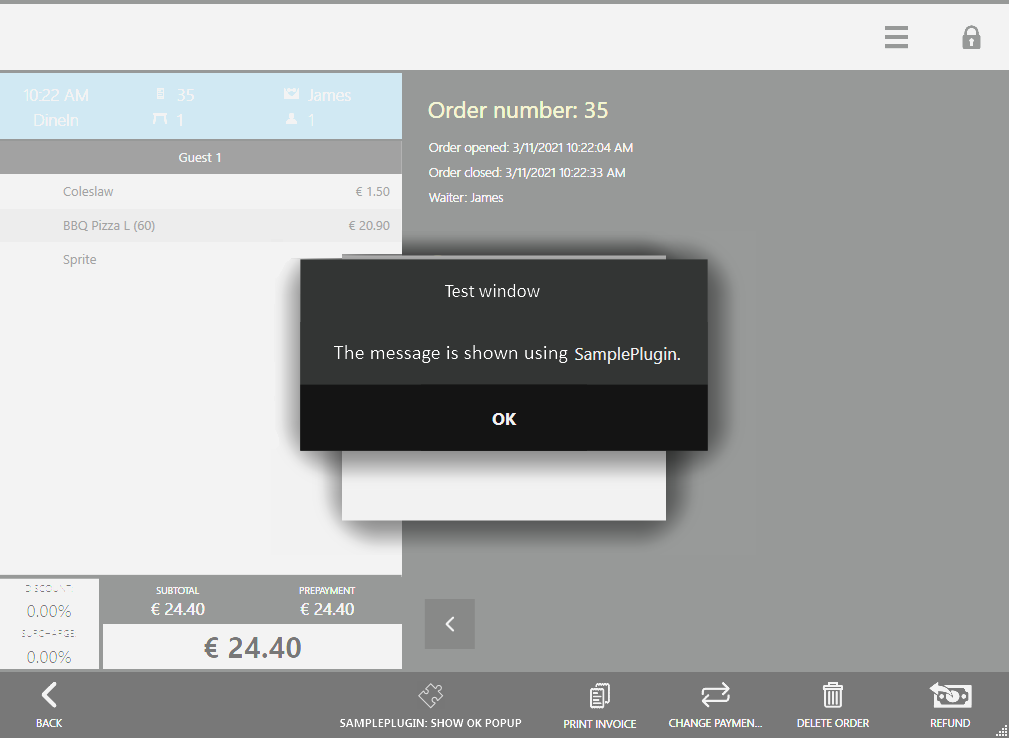
Let’s say the plugin shows a window with a message (see the article API Dialogs).
The plugin can add several buttons to the closed order screen at once.
For example, using the SDK SamplePlugin, 2 buttons were added: “SamplePlugin: Show OK popup” and “SamplePlugin: Show input dialog”. Then the closed order screen will display the button “Additions”.
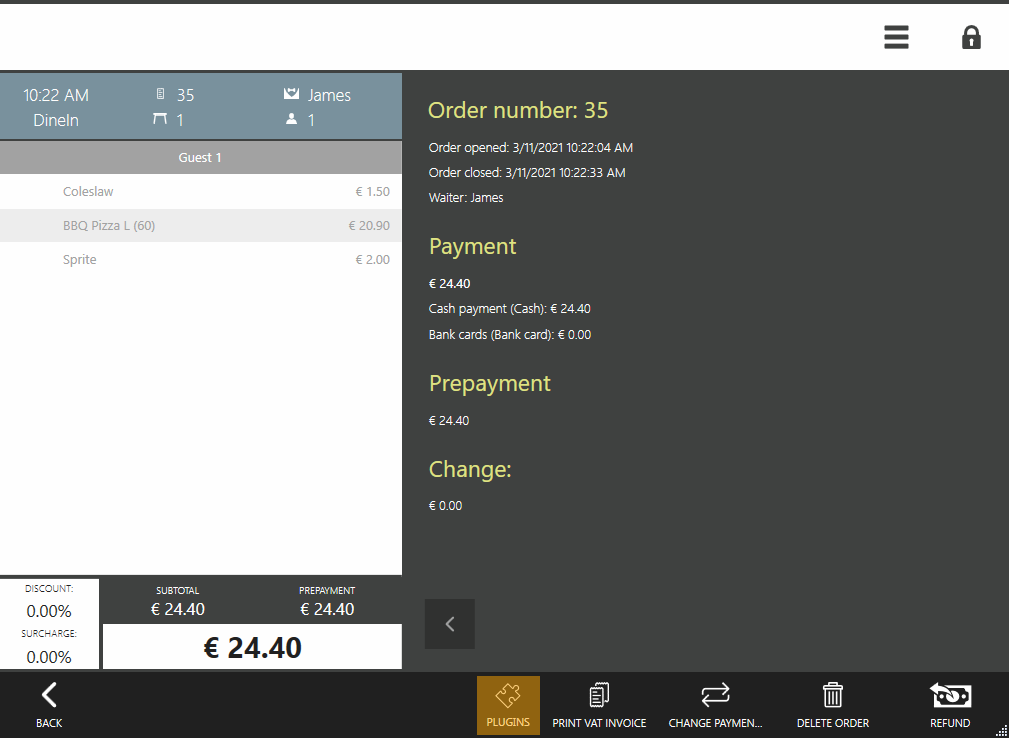
The button “Additions” also appears if several plugins add one button each to the closed order screen.
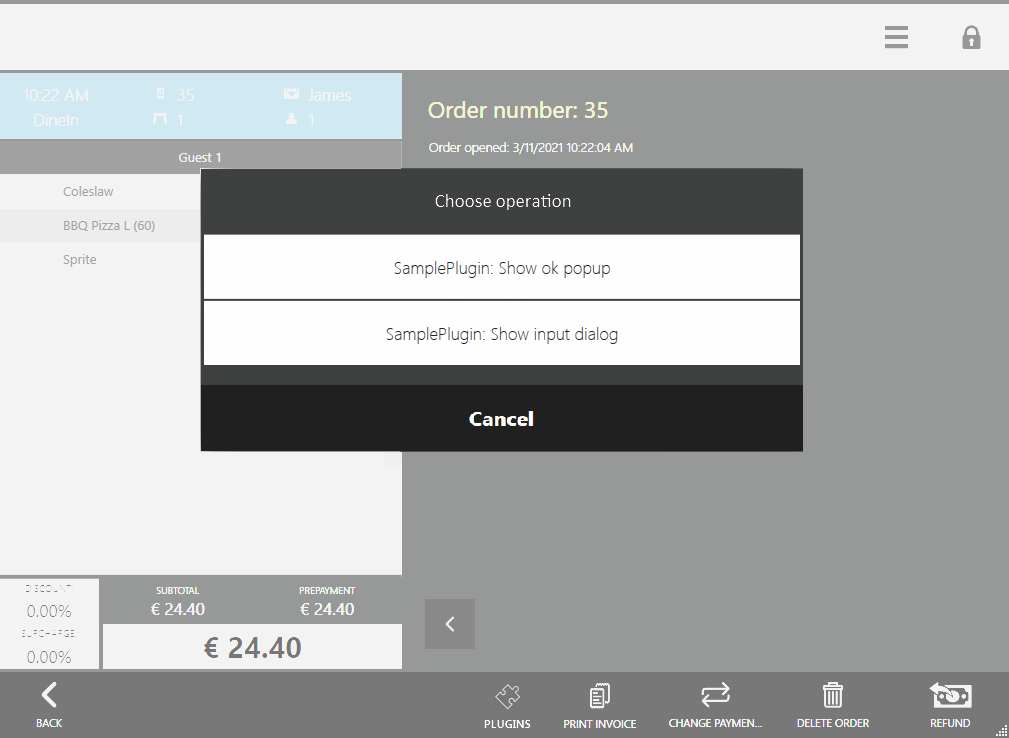
When you click on “Additions”, a list of all buttons added by the plugins will be displayed.
2. On the product return screen with receipt (closed order from the previous cash shift)
See documentation on product returns with receipt (orders from previous cash shifts).
How to add your extensions?
Step 1: Register a handler for the required type of closed order screen:
subscriptions = new CompositeDisposable
{
	// Register action on the closed order screen of the current cash shift
	Integration.AddButtonOnClosedOrderView("SamplePlugin: Show ok popup", ShowOkPopupOnClosedOrderScreen),

	// Register action on the closed order screen of the previous cash shift
	Integration.AddButtonOnPastOrderView("SamplePlugin: Show ok popup", ShowOkPopupOnPastOrderScreen),
};
The function for registering an operation on the current cash shift closed order screen AddButtonOnClosedOrderView() takes 2 arguments:
string— the name of the button, displayed on the UI.Action<IOrder, ICashRegisterInfo, IViewManager>— the function that will be called when the button is pressed.
The function for registering an operation on the previous cash shift closed order screen AddButtonOnPastOrderView().
SyrveFront does not store orders from closed cash shifts, so in the method AddButtonOnPastOrderView(), it will not be possible to retrieve the order IOrder by the order ID.
The order ID from the previous cash shift will be useful for the plugin or external service if it maintains its own storage.
Step 2. Describe the handler for the added button:
private void ShowOkPopupOnClosedOrderScreen(IOrder closedOrder, ICashRegisterInfo cashRegister, IViewManager viewManager)
{
	viewManager.ShowOkPopup("Test Window", "Message displayed using SamplePlugin.");
}
private void ShowOkPopupOnPastOrderScreen(Guid pastOrderId, ICashRegisterInfo cashRegister, IViewManager viewManager)
{
	viewManager.ShowOkPopup("Test Window", "Message displayed using SamplePlugin.");
}
You can see implementation examples in the SDK SamplePlugin project class ButtonsTester.