Checking and Requesting Permissions
v7 Actions performed using the plugin may require checking or requesting permissions.
To check user permissions, there are methods CheckPermission and CheckPermissions.
To request permissions, dialog windows can be shown using methods ShowCheckPermissionPopup and ShowCheckPermissionsPopup.
The current user can be identified using the method GetCurrentUser.
If the terminal operates in “Strict Compliance with Schedule” mode, the current role can be identified using GetStrictAccordanceToScheduleUserRole.
How does it look in SyrveFront?
For example, the plugin adds a button “SamplePlugin: Show OK popup” on the “payment screen”.
An implementation example can be found in the SDK SamplePlugin project in the ButtonsTester class.
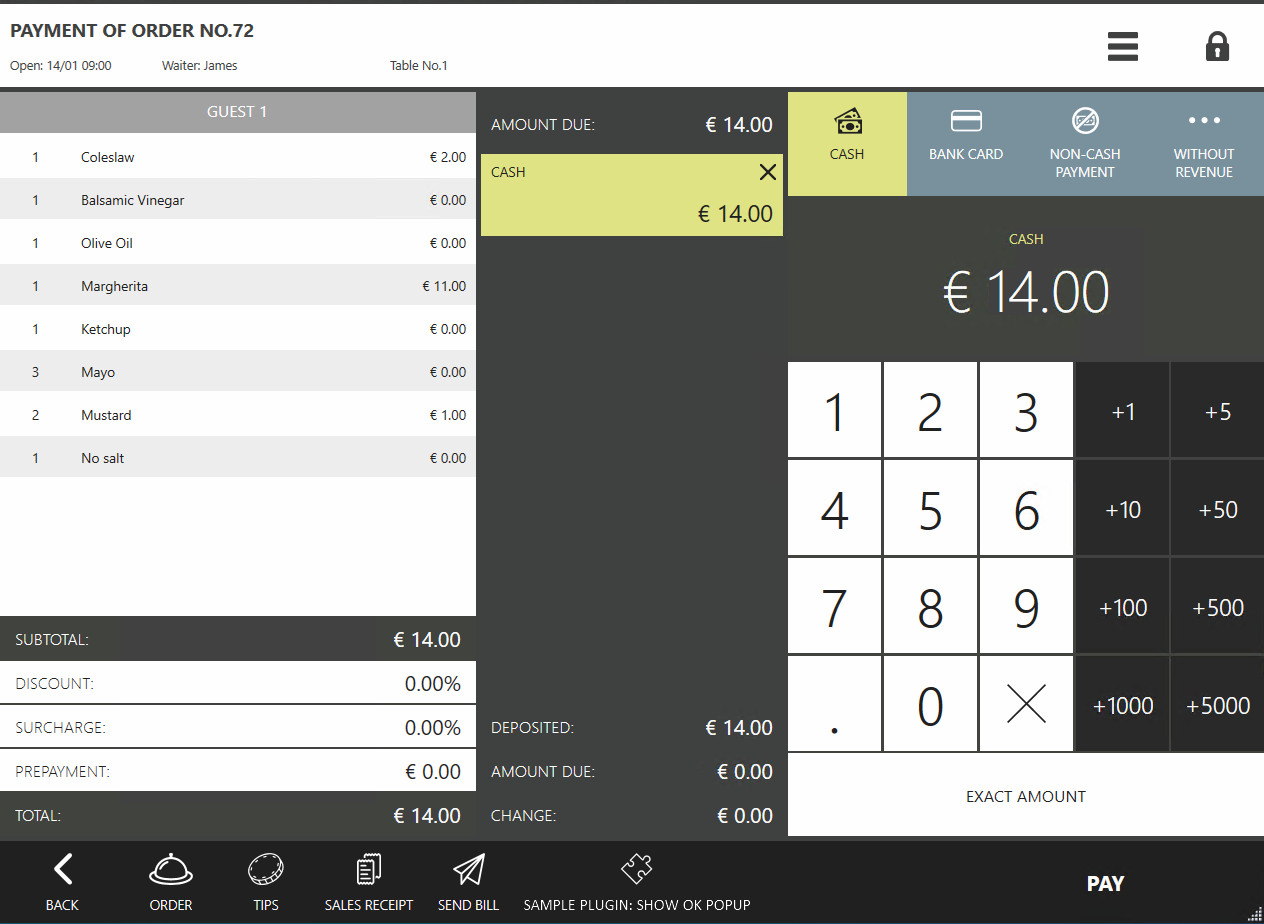
Let the button be available for pressing only to users with certain permissions. This can be done in several ways. First, let’s register the button:
// Registering an action on the payment screen
subscription = PluginContext.Operations.AddButtonToPaymentScreen("SamplePlugin: Show ok popup", false, true, ShowOkPopupOnPaymentScreen);
As a result of the registration method, you can obtain the button ID - subscription.buttonId.
This identifier will be used later.
Option 1: Disabling the button for all users who do not have permission to press it.
You can enable and disable the previously added button on the payment screen using the method UpdatePaymentScreenButtonState by passing the isEnabled parameter.
Here, it is most convenient to use the event CurrentUserChanged to find out which user is currently working.
Let’s subscribe to the event and check if the user has the required permission (for example, the permission to print the X-report “F_XR”):
// Subscribing to the current user change event
PluginContext.Notifications.CurrentUserChanged.Where(user => user != null).DistinctUntilChanged().Subscribe(user =>
{
    var isButtonEnabled = PluginContext.Operations.CheckPermission(user, "F_XR");
    PluginContext.Operations.UpdatePaymentScreenButtonState(subscription.buttonId, isEnabled: isButtonEnabled);
});
Thus, when the current user changes, depending on the presence of the “F_XR” permission, the button will be turned off or on.
The method CheckPermission takes 3 arguments:
IUseruser— the user for whom the permission is being checked.string permissionCode— the permission that the user must have.IRolerole— an optional parameter. The user’s role. Used if the terminal operates in “Strict Compliance with Schedule” mode, which can be obtained using the methodGetStrictAccordanceToScheduleUserRole.
Similarly, you can check multiple permissions using the method CheckPermissions. It takes 4 arguments:
IUseruser— the user for whom the permissions are being checked.string[] permissionCodes— the permissions being checked for the user.PermissionsCheckModecheckMode— whether to check for all permissions (PermissionsCheckMode.All) or at least one (PermissionsCheckMode.Any).IRolerole— an optional parameter. The user’s role. Used if the terminal operates in “Strict Compliance with Schedule” mode.
The list of permissions that the user has may change.
To track this, you can subscribe to the event UserChanged.
Option 2: Hiding the button for all users who do not have permission to press it.
You can move the button registration into the subscription to CurrentUserChanged:
(Guid buttonId, IDisposable buttonRegistration)? subscription = null;
// Subscribing to the current user change event
PluginContext.Notifications.CurrentUserChanged.Where(user => user != null).DistinctUntilChanged().Subscribe(user =>
{
    if (PluginContext.Operations.CheckPermission(user, "F_XR")) // User has permission
    {
        if (subscription == null) // Was the button previously created?
            subscription = PluginContext.Operations.AddButtonToPaymentScreen("SamplePlugin: Show ok popup", false, true, ShowOkPopupOnPaymentScreen);
    }
    else // User does not have permission
    {
        subscription?.buttonRegistration.Dispose(); // Remove the button if it was created
        subscription = null;
    }
});
In this case, if the user does not have permission, the button will not appear.
Option 3: Checking the ability to perform an operation at the moment of pressing the button.
If there is an opportunity to use an instance of IViewManager, then you can show a permission request window.
For example, access to it is available in the subscription to the button press event.
There can be several implementation options here.
Option 3.1: If the user has permission, the permission request window will not appear. If the user does not have it, we show the permission request window.
private void ShowOkPopupOnPaymentScreen((IOrder order, IOperationService os, IViewManager vm, (Guid buttonId, string caption, bool isChecked, string iconGeometry) state) info)
{
    if (info.vm.ShowCheckPermissionPopup("F_XR", false) == null) // Permission was not confirmed
        return;
    info.vm.ShowOkPopup("Test window", "Message displayed using SamplePlugin.");
}
The method ShowCheckPermissionPopup takes 2 arguments:
string permissionCode— the permission that the current user must have.bool showConfirmPopupAnyway— if false, the window will only appear if the current user does not have the permission. If true, the window will appear even if the user has the required permission.
The method returns an instance of IUser — the user who confirmed the permission, or null if the permission was not confirmed.
It should be noted that any user can confirm the permission, not just the one who is currently logged into the terminal.
In our case, if the current user has permission, the permission request window will not appear, and the operation will be executed. If the user does not have permission, the permission request window will appear:
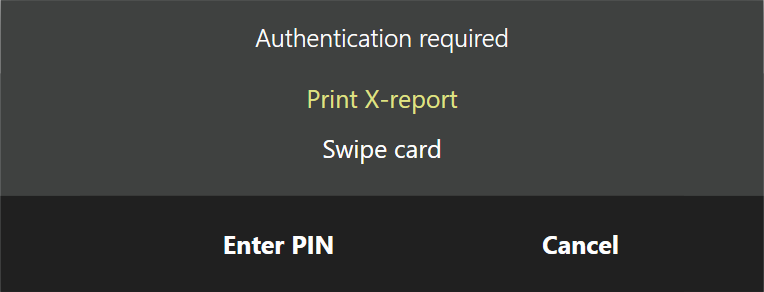
If the permission was confirmed, the method ShowCheckPermissionPopup will return an instance of IUser - the user who confirmed the permissions.
Option 3.2: Request permission in any case, even if the user has it.
Sometimes, unintentional execution of an operation can lead to undesirable consequences.
To prevent this, you can require permission confirmation even if the current user already has it.
Let’s modify the button press subscription by passing true to showConfirmPopupAnyway:
private void ShowOkPopupOnPaymentScreen((IOrder order, IOperationService os, IViewManager vm, (Guid buttonId, string caption, bool isChecked, string iconGeometry) state) info)
{
    if (info.vm.ShowCheckPermissionPopup("F_XR", true) == null) // Permission was not confirmed
        return;
    info.vm.ShowOkPopup("Test window", "Message displayed using SamplePlugin.");
}
In this case, the permission request window will always be shown.
Option 4: Checking multiple permissions.
You can show a window to check multiple permissions, for example:
private void ShowOkPopupOnPaymentScreen((IOrder order, IOperationService os, IViewManager vm, (Guid buttonId, string caption, bool isChecked, string iconGeometry) state) info)
{
    if (info.vm.ShowCheckPermissionsPopup(new string[] { "F_XR", "F_ZREP" }, false, PermissionsCheckMode.Any) == null) // Permissions were not confirmed
        return;
    info.vm.ShowOkPopup("Test window", "Message displayed using SamplePlugin.");
}
The method ShowCheckPermissionsPopup takes 3 arguments:
string[] permissionCodes— the permissions that will be checked for the current user.bool showConfirmPopupAnyway— if false, the window will only appear if the current user does not have the permission. If true, the window will appear even if the user has the required permission.PermissionsCheckModecheckMode— whether to check for all permissions (PermissionsCheckMode.All) or at least one (PermissionsCheckMode.Any).
The method returns an instance of IUser — the user who confirmed the permissions, or null if the permissions were not confirmed.